Inside PermGuard: A Closer Look at Salesforce’s Unified Permission Management Console
Our first post explained why permission set management gets harder as orgs grow. This one is about the product itself. If you’re evaluating PermGuard, here’s what it is, how it’s built, and what it takes to get running.
What PermGuard Is
PermGuard is a Salesforce-native permission management solution from Genufy TechWorks. It gives administrators a single console to assign, remove, and analyze user access, covering both Permission Sets and Permission Set Groups, without moving across multiple Setup pages.
It’s listed on Salesforce AgentExchange as a free Salesforce App in the IT & Administration category.
One Console, Four Jobs
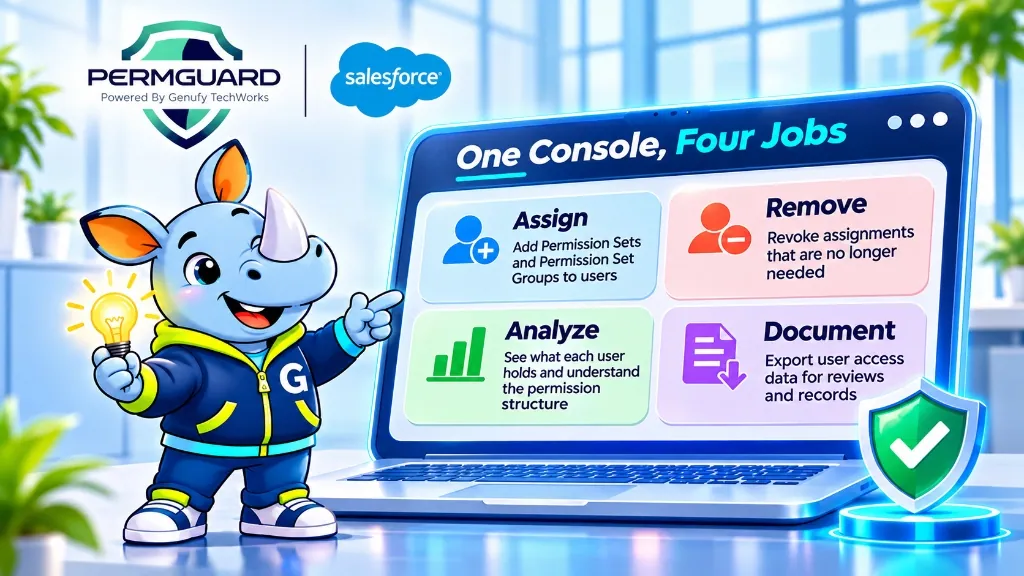
| Job | What you can do in PermGuard |
|---|---|
| Assign | Add Permission Sets and Permission Set Groups to users |
| Remove | Revoke assignments that are no longer needed |
| Analyze | See what each user holds and understand the permission structure |
| Document | Export user access data for reviews and records |
Built for Controlled, Secure Use
An access tool is itself a sensitive tool, so PermGuard controls who can use it. Usage is structured through dedicated permission sets for three levels: Super Admin, Admin, and User.
In practice, this means:
- Access to PermGuard’s capabilities follows a defined hierarchy
- Teams can decide who manages permissions and who only views them
- The tool follows the same least-privilege thinking it helps you apply
Review Users the Way You Think About Them
Admins rarely ask “show me every user.” They ask questions like:
- Which users in this role hold this permission?
- Who on this profile has access to X?
- What exactly does this person have?
PermGuard lets you filter and review users by profile, role, and permissions, so questions like these become a filter instead of a manual search.
Example: At a retail company, the Sales Head asks the admin what permissions the Regional Sales Managers have. The admin selects the role, views the users and their permissions together, and exports the report, with no record-by-record checking.
Designed for Large Environments
PermGuard is built with scale in mind. It’s designed for scalable, enterprise Salesforce environments, where the number of users, roles, and permission assignments makes manual review impractical.
Why It’s Low-Friction to Adopt
Several technical details make PermGuard easy to bring into an org:
- Managed package: Installs as a managed package and receives automatic upgrades
- Lightning Ready: Optimized for orgs using Lightning
- Wide edition support: Works with Professional, Enterprise, Unlimited, Developer, and Essentials editions
- Free: No payment required
Requirements: PermGuard requires Sales Cloud. It’s currently available in English.
Who Uses PermGuard
PermGuard is listed for three personas:
- Administrators: The daily users, assigning and removing access and running reviews
- Business Operations Managers: Teams who need visibility into who has access to what
- Sales Representatives and Managers: Users who benefit from correct access without delays
Getting Started
- Open the PermGuard listing on Salesforce AgentExchange
- Select Get It Now to install, or Try It to explore first
- Assign the relevant PermGuard permission set (Super Admin, Admin, or User) to your team
- Start reviewing and managing access from the unified console
👉 Get PermGuard on Salesforce AgentExchange
New to the concept? Read our overview:
Permission Set Management: A Practical Approach with PermGuard